How to remove furniture from a room photo
Published · 4 min read
To remove furniture from a room photo, use your phone's built-in eraser for one or two small items, an AI room-clearing tool for a whole room, or a human editor for difficult shots. Always check the result against the original: windows, doors and built-ins must stay where they are. On a listing, label the photo as digitally altered and keep the original.
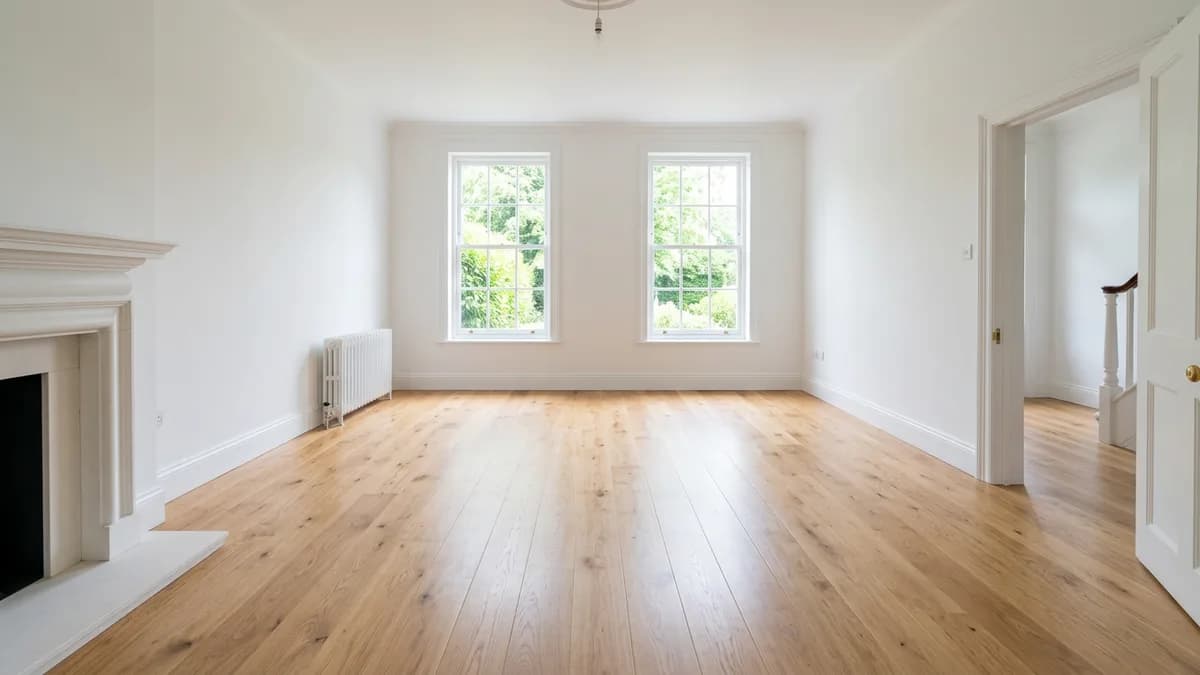
When you'd want an empty room
Most people remove furniture from a photo for one of three reasons: a listing photo shows the seller's or tenant's belongings, the room is cluttered and hard to read, or you want a clean, empty room to stage with different furniture. In each case the goal is the same — show the space itself, not what's in it.
That also sets the limit. You're removing things that leave with the occupant: sofas, beds, rugs, boxes, cables, wall art. You're not removing radiators, built-in cabinets, light fixtures or anything else that stays with the home.
Option 1: your phone's eraser, for small items
Phones now ship with object erasers. On iPhone, Clean Up in the Photos app removes distracting objects; Apple lists it as an Apple Intelligence feature for iPhone 15 Pro and iPhone 16 models and later with iOS 18.1 or newer. Google Photos has Magic Eraser, which suggests distractions and lets you circle or brush over what you want gone.
- Open the photo in your phone's gallery and tap Edit.
- Choose Clean Up (iPhone) or Magic Eraser (Google Photos).
- Circle or brush over one object at a time, and zoom in to check the patch.
- Save it as a copy, so the original stays untouched.
These tools are made for small distractions — a bin, a chair, a cable. Ask them to remove a sofa against a patterned wall and you'll often get smudged walls, a warped floor line or a ghost of the sofa's shadow.
Option 2: AI room clearing, for a whole room
AI room-clearing tools empty the whole room in one go and rebuild the walls and floor behind the furniture. They're the fastest way to get a staging-ready photo of a furnished room.
- Use a level, well-lit photo of the whole room, taken from a corner or straight on.
- Expect to compare: AI sometimes redraws part of the room — moves a window, shifts the angle or invents a door. If anything structural moved, run it again or try another shot.
- Watch built-ins. A good result keeps cabinets, radiators, outlets and light fixtures exactly where they were.
EmptyRoomStaged's Remove furniture mode does this in about a minute; it's in beta, so the result screen shows the original next to the empty room for that check. From the empty room you can then stage it in a new style — see the virtual staging disclaimer guide for how to label both.
Option 3: a human editor, for difficult shots
Dark rooms, mirrors, glass walls, heavy patterns and fish-eye wide angles are hard for any automatic tool. A photo-editing service will remove items by hand and usually charges per image, with a turnaround of a day or two. It's slower and more expensive, but worth it for a hero photo you can't reshoot — compare prices in our guide to virtual staging costs.
Disclose it on listings
Removing furniture counts as altering the photo. In California, AB 723 has required a disclosure and access to the unaltered original for digitally altered listing images since January 1, 2026, and the San Diego MLS lists removing physical features among the changes that need it. Many MLSs also limit what you may remove: Stellar MLS, for example, allows removing items that are easily removable in real life but not permanent fixtures.
Tip: Label the edited photo “Digitally altered”, keep the original next to it, and never remove something a buyer would expect to find in the house.
Done honestly, an empty room is one of the most useful listing photos: it shows the true size of the space, and it's the best starting point for staging the room in a style that suits the buyer you're after.
Questions
Yes, for small items. Clean Up on recent iPhones and Magic Eraser in Google Photos are built in. For a whole room, AI room-clearing tools are faster and usually offer a few free photos.
Removing large furniture means the AI has to rebuild what was behind it, and sometimes it redraws more than it should. Use a level, well-lit photo, compare with the original, and run it again if anything structural moved.
Usually yes. Removing items is a digital alteration; California requires a disclosure and the unaltered original since January 2026, and many MLSs ask for a label too. Never remove permanent fixtures.